 admin
admin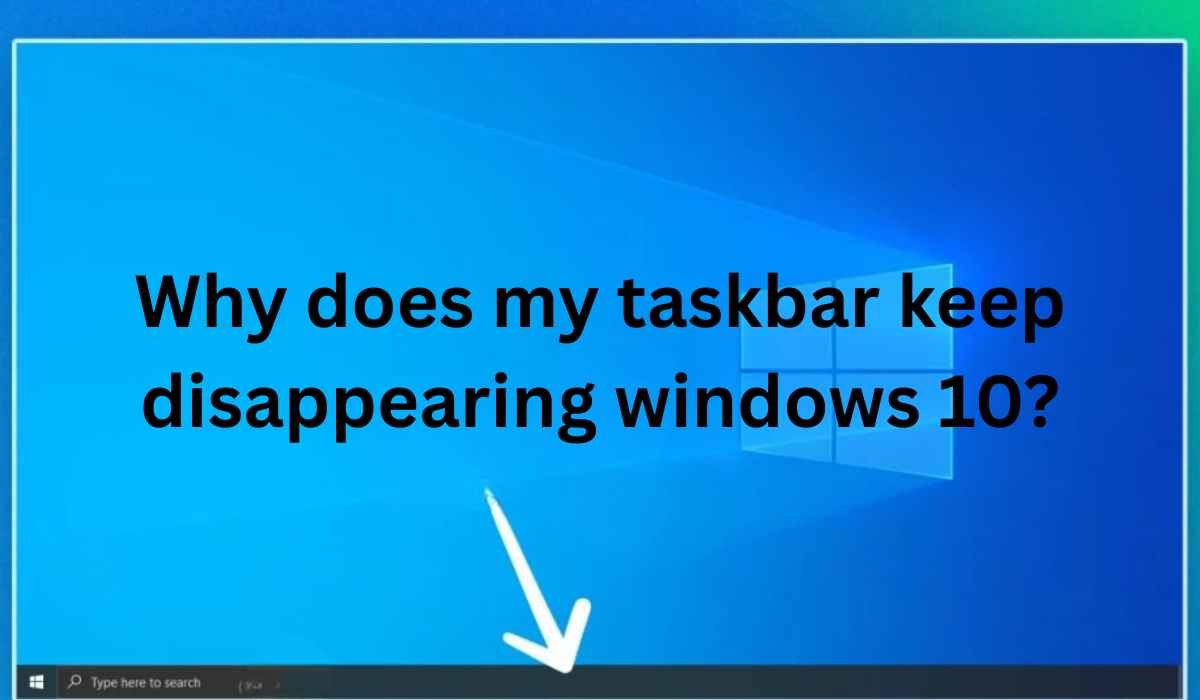
If you are wondering why does my taskbar keep disappearing windows 10, the most common causes are automatic hiding, a stuck Windows Explorer process, display settings, or a temporary Windows glitch.
The Windows 10 taskbar is responsible for quick access to the Start menu, open applications, notifications, system icons, and other useful controls. When it suddenly vanishes, your computer can feel difficult to use, especially if it keeps disappearing while you move between programs.
The good news is that a missing taskbar is often fixable without resetting Windows. You can start with simple settings and restart steps before trying more advanced repairs.
2026 note: Microsoft ended standard Windows 10 support on October 14, 2025. Windows 10 PCs still work, but Microsoft no longer provides free Windows Update software updates, technical support, or security fixes for the operating system.
Why Does My Taskbar Keep Disappearing Windows 10?
There are several possible reasons your taskbar may disappear. Some are normal Windows settings, while others can happen because Windows Explorer stops responding correctly.
Here are the most common causes:
- Automatic taskbar hiding is enabled.
- Windows Explorer has temporarily stopped responding.
- A program is running in full-screen mode.
- The taskbar is affected by a display or multiple-monitor setting.
- A temporary Windows software problem is preventing it from loading correctly.
- A graphics driver or display issue is affecting the desktop.
- Corrupted system files may be interfering with Windows components.
Microsoft confirms that Windows 10 includes settings for automatically hiding the taskbar in both desktop and tablet modes.
Check Automatic Taskbar Hiding First
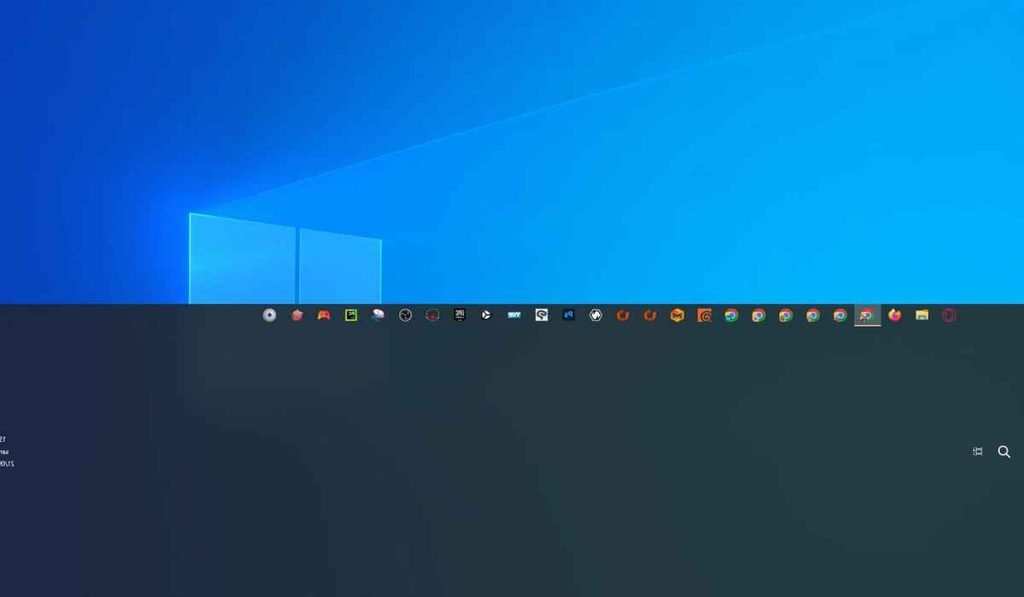
The first thing to check is whether Windows is hiding the taskbar by design.
When automatic hiding is enabled, the taskbar disappears until you move the mouse pointer to the bottom edge of the screen.
How to turn off auto-hide
- Right-click an empty area of the taskbar.
- Select Properties or open Taskbar settings, depending on your Windows 10 configuration.
- Look for the option related to automatically hiding the taskbar.
- Turn off Automatically hide the taskbar in desktop mode.
- If you use a tablet or 2-in-1 device, also check the tablet-mode setting.
- Move your mouse away from the bottom edge and check whether the taskbar remains visible.
Microsoft’s current taskbar documentation confirms that automatic hiding can be controlled through Taskbar settings and that moving the pointer to the bottom edge reveals a hidden taskbar.
If the taskbar stays visible after changing this setting, you have likely found the problem.
Restart Windows Explorer
If auto-hide is already disabled, the next useful step is restarting Windows Explorer.
Windows Explorer is not only responsible for opening folders. It also helps provide important parts of the Windows desktop interface. If Explorer becomes stuck, the taskbar can disappear or stop responding.
Restart Explorer from Task Manager
- Press Ctrl + Shift + Esc.
- Task Manager should open.
- Find Windows Explorer in the process list.
- Right-click it.
- Select Restart.
Your screen may briefly refresh. The taskbar should then return.
Microsoft recommends restarting Windows Explorer as a troubleshooting step for certain Windows display problems. If Explorer is not listed, Microsoft also suggests using File > Run new task and entering explorer.exe.
This is one of the quickest fixes when the taskbar suddenly disappears but the rest of Windows is still working.
What to Do If Windows Explorer Is Missing
Sometimes Windows Explorer does not appear in Task Manager.
In that situation:
- Open Task Manager with Ctrl + Shift + Esc.
- Select File.
- Choose Run new task.
- Type explorer.exe.
- Press Enter.
Windows should reload the desktop interface.
If the taskbar returns after this step, the issue was likely connected to the Explorer process rather than the physical display.
Check Whether Full-Screen Mode Is Hiding the Taskbar
Before making system changes, check whether the taskbar disappears only when using a particular application.
Video players, web browsers, games, and other programs can use full-screen mode. In that situation, the taskbar may intentionally remain hidden.
Try pressing:
F11
Many applications use F11 to enter or leave full-screen mode.
You can also press the Windows key to see whether the Start menu or taskbar becomes visible.
If the taskbar disappears only inside one application, the application itself may be responsible rather than Windows 10.
Check Your Display and Multiple-Monitor Settings
A second monitor can sometimes make a missing taskbar appear confusing.
For example, you may think the taskbar has disappeared when it is actually displayed on another screen or behaving differently because of multiple-display settings.
Check your display arrangement by going to:
Settings > System > Display
Make sure Windows correctly identifies your monitors and that the correct screen is selected as the main display.
This is especially worth checking if the problem began after connecting or disconnecting an external monitor, television, projector, or docking station.
Quick comparison
| Problem | What you may notice | First fix to try |
| Auto-hide enabled | Taskbar appears when you move the mouse down | Disable auto-hide |
| Explorer problem | Taskbar disappears or stops responding | Restart Explorer |
| Full-screen app | Taskbar vanishes only in one program | Exit full-screen |
| Monitor issue | Taskbar appears on another display | Check Display settings |
| Temporary Windows glitch | Problem appears randomly | Restart the PC |
| Graphics issue | Desktop or screen also behaves strangely | Check graphics driver |
Restart the Computer
A simple restart can fix temporary Windows interface problems.
If the taskbar has disappeared but you can still use keyboard shortcuts, restart Windows normally.
You can press:
Ctrl + Alt + Delete
Then use the power option to restart the computer.
A restart is particularly useful if the problem began after installing software, connecting another display, waking the computer from sleep, or leaving the system running for a long period.
Microsoft also recommends restarting the device during Windows troubleshooting, including when File Explorer-related problems occur.
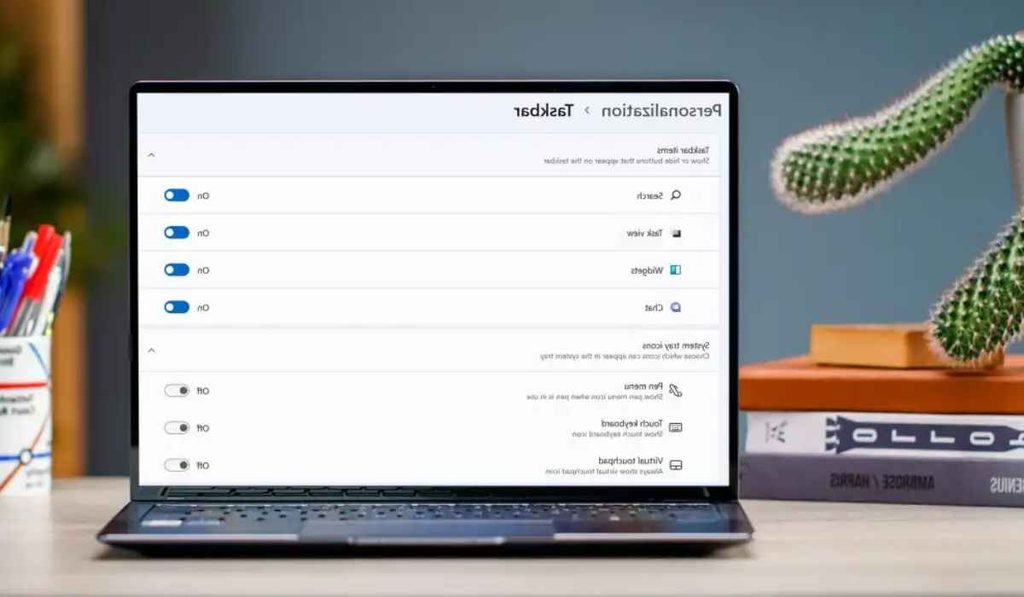
Check Windows 10 Taskbar Settings
If you still cannot figure out why does my taskbar keep disappearing windows 10, carefully review the taskbar settings.
Go to:
Start > Settings > Personalization > Taskbar
Look for settings related to:
- Automatically hiding the taskbar
- Taskbar location
- Small taskbar buttons
- Notification area
- Multiple displays
- Taskbar behavior
Windows 10 provides several controls for changing how the taskbar appears and behaves. Microsoft documents settings for automatically hiding the taskbar, locking it, changing its location, and managing multiple displays.
If you changed several personalization settings recently, returning the taskbar options to a normal configuration can help identify the problem.
Update or Check Your Graphics Driver
If the taskbar disappears along with other desktop display problems, your graphics driver could be involved.
Signs of a wider graphics problem may include:
- Screen flickering
- Black or blank screen
- Icons disappearing
- Incorrect screen resolution
- External monitor problems
- Windows freezing visually
Open Device Manager, expand Display adapters, and check your graphics hardware.
Microsoft’s troubleshooting guidance recommends checking graphics drivers when display problems occur and notes that a driver can be updated or rolled back if the problem started after an update.
Do not immediately install random driver software from unknown websites. If you need a driver update, use Windows tools or the official hardware manufacturer’s website.
Run System Checks If the Problem Keeps Returning
If the taskbar disappears repeatedly even after restarting Explorer and checking the settings, the issue may involve Windows system components.
At this stage, you can use Windows built-in repair tools.
A common approach is to open Command Prompt as administrator and use Windows system repair commands. These tools can check protected system files and attempt to repair problems.
Before running advanced commands, save your work and create a backup of important files.
You should also avoid downloading random “taskbar repair” programs. Many basic taskbar problems can be investigated using Windows’ own tools.
Consider a Recent Software Change
Think about when the disappearing taskbar problem started.
Did it happen after:
- Installing a new application?
- Updating a graphics driver?
- Connecting a second monitor?
- Changing Windows personalization settings?
- Installing another desktop customization tool?
- Changing display resolution?
If the problem started immediately after one of these changes, undoing the recent change may help identify the cause.
Third-party desktop customization software can also interfere with normal Windows interface behavior. If you recently installed such software, temporarily disabling or uninstalling it can be a useful test.
When Should You Consider System Restore?
If why does my taskbar keep disappearing windows 10 has become a recurring problem and the issue started after a recent system change, System Restore may be worth considering.
System Restore can return certain system settings and software configurations to an earlier restore point.
It is most useful when:
- The taskbar worked normally before a specific change.
- Windows has an available restore point.
- Other troubleshooting steps have failed.
Microsoft lists System Restore as an option when certain Windows display problems begin recently.
Do not use system recovery tools casually. Make sure important personal files are backed up first.
A Simple Troubleshooting Order
If you want the fastest path to a solution, work through the fixes in this order:
- Move the mouse to the bottom of the screen.
- Press the Windows key.
- Exit full-screen mode.
- Check automatic taskbar hiding.
- Restart Windows Explorer.
- Restart the computer.
- Check display and multiple-monitor settings.
- Check graphics drivers if other display problems exist.
- Investigate recent software or setting changes.
- Use deeper Windows recovery options only if the problem continues.
This approach starts with the safest and easiest solutions before moving toward more advanced troubleshooting.
Windows 10 in 2026: One Important Consideration
Windows 10 remains usable in 2026, but its standard support period has ended. Microsoft states that support ended on October 14, 2025, meaning standard free software updates, technical assistance, and security fixes are no longer provided.
That does not mean a disappearing taskbar automatically requires upgrading your PC. A simple setting or Explorer problem can still cause the issue.
However, if you are experiencing several Windows problems, staying on an unsupported operating system is worth reconsidering. Check your computer’s compatibility and Microsoft’s current upgrade options before making a decision.
FAQs
- Why does my taskbar keep disappearing windows 10 even when auto-hide is off?
- A stuck Windows Explorer process, display issue, or software conflict can cause the taskbar to disappear even when auto-hide is disabled.
- How do I get my Windows 10 taskbar back quickly?
- Press Ctrl + Shift + Esc, restart Windows Explorer in Task Manager, or run explorer.exe if Explorer is not listed.
- Why does my taskbar disappear only when I open a program?
- The program may be using full-screen mode, which can temporarily hide the Windows taskbar.
- Can a second monitor make the Windows 10 taskbar disappear?
- Yes, display and multiple-monitor settings can affect where the taskbar appears and how it behaves.
- Is Windows 10 still supported in 2026?
- Standard Windows 10 support ended on October 14, 2025, although existing Windows 10 PCs can continue to operate.
A disappearing taskbar is usually less serious than it first appears. Start with auto-hide settings and restarting Windows Explorer, then move on to display, driver, and system troubleshooting if the problem keeps returning. A few minutes of checking can often restore the taskbar without making major changes to your Windows installation.