 admin
admin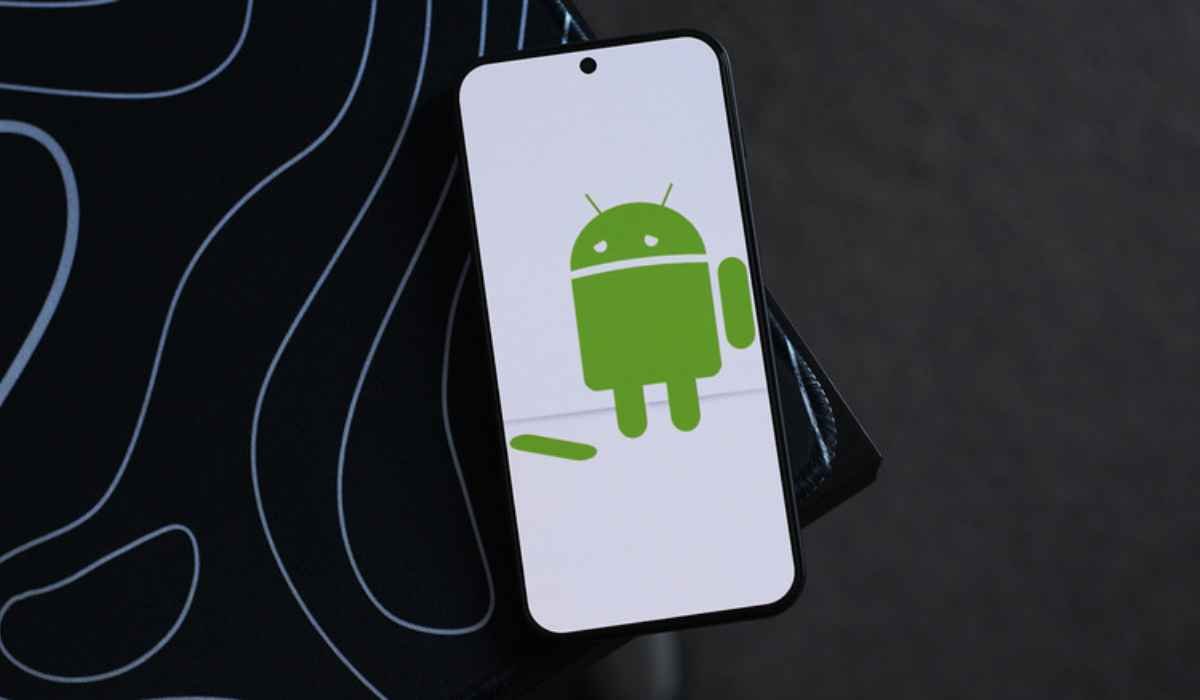
When Android apps keep crashing after update, the problem is often caused by an app bug, outdated supporting software, corrupted cached data, low storage, or a compatibility issue between the updated app and your Android version.
An app update is supposed to improve performance, add features, and fix problems. Sometimes, though, a new version can introduce a bug or conflict with something already installed on your phone. You may notice an app opening and immediately closing, freezing after a few seconds, or repeatedly showing an “app keeps stopping” message.
The good news is that you usually do not need to factory-reset your phone. Google recommends starting with simple steps such as restarting the phone, checking for updates, force-stopping the affected app, and clearing its cache or data.
Why Do Android Apps Keep Crashing After an Update?
There is no single reason for an app crash after an update. The cause can be inside the app itself or somewhere else in the Android software environment.
Common causes include:
- A bug in the latest app version
- Incomplete or damaged app data after updating
- Outdated Android system software
- Outdated Google Play services
- Outdated Android System WebView or related components
- Low phone storage
- Compatibility problems with an older Android version
- Conflicts with another downloaded app
- Corrupted cache files
- A temporary software glitch
If only one app is crashing, the problem is more likely to be connected to that particular app. If many unrelated apps suddenly crash, the issue may be broader and could involve Android system components or another downloaded application.
Google’s troubleshooting guidance recommends updating the affected app and Android, restarting the phone, force-stopping the app, and clearing its cache or data.
First, Restart Your Android Phone
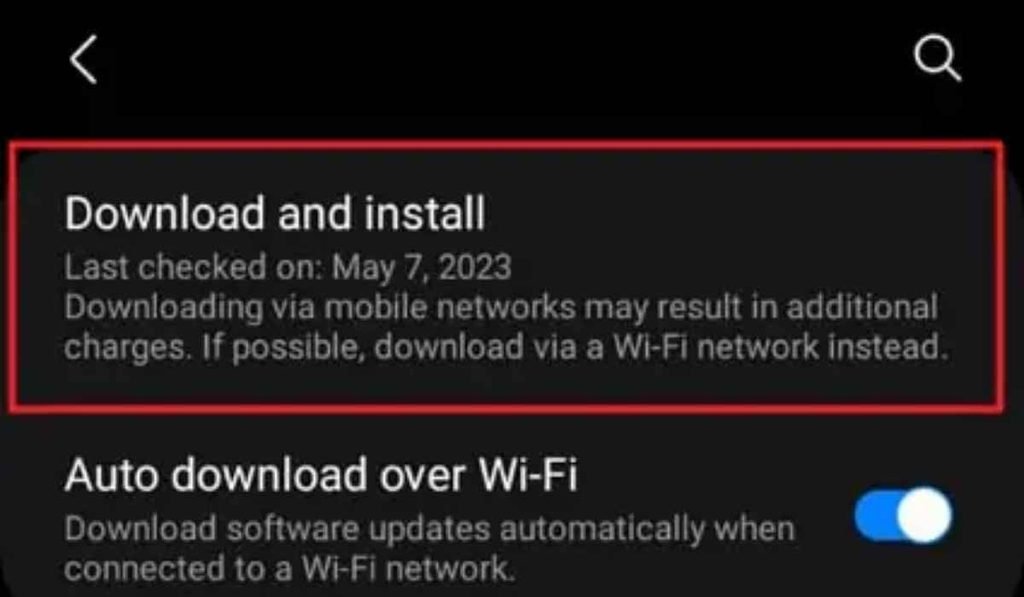
A restart is one of the easiest things to try when Android apps keep crashing after update.
It clears temporary processes and gives Android a fresh start. An app that crashed because of a temporary software problem may work normally after rebooting.
To restart most Android phones:
- Press and hold the Power button.
- Tap Restart.
- Wait for the phone to completely reboot.
- Open the affected app again.
Google specifically recommends restarting the device as an early troubleshooting step for apps that crash, fail to open, or stop responding.
If the app works after restarting but starts crashing again later, continue with the next steps.
Update the App Again
Sometimes an app update is only part of a larger update process. The developer may release another version shortly after a problematic update.
Open the Google Play Store and check for updates.
How to check for app updates
- Open Google Play Store.
- Tap your profile picture.
- Select Manage apps & device.
- Look under Updates available.
- Update the affected app.
- If several apps have updates available, consider updating them as well.
Google recommends checking for available app updates when an installed Android app is crashing or not working correctly.
This is especially useful if other users have reported the same problem and the developer has already released a follow-up fix.
Check for an Android System Update
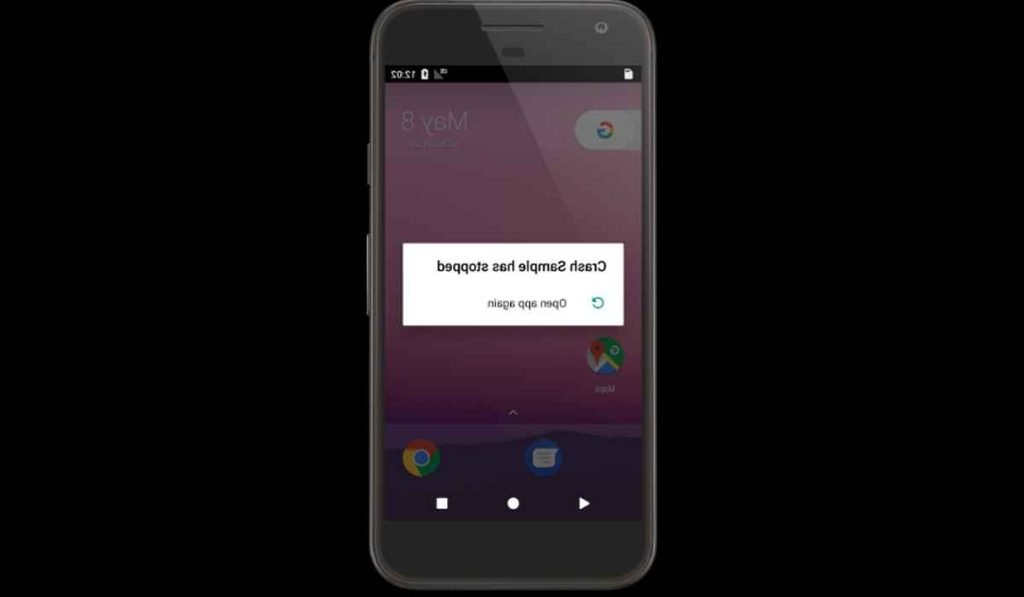
If Android apps keep crashing after update and several apps are affected, check whether your phone itself has a pending system update.
Go to your phone’s:
Settings > System > Software update
The exact menu can differ between Samsung, Google Pixel, Xiaomi, OnePlus, Motorola, and other Android phones.
A system update can contain compatibility fixes that help apps work correctly with newer Android releases.
If the phone says that it is already up to date, move to the next troubleshooting step.
Force Stop the Crashing App
Force stopping an app completely closes its active process.
This can help if the application became stuck after installing an update.
Try:
- Open Settings.
- Tap Apps or Apps & notifications.
- Select the affected application.
- Tap Force stop.
- Confirm if Android asks.
- Open the app again.
Google lists force stopping as a recommended step for an installed app that crashes or does not respond.
The menu names can vary depending on the Android phone manufacturer.
Clear the App Cache
A damaged or outdated cache can sometimes cause problems after an app update.
Clearing the cache removes temporary files. It does not normally remove your account or permanently delete your personal app data.
Try:
Settings > Apps > [App Name] > Storage & cache > Clear cache
Then open the application again.
Google notes that clearing cached data removes temporary information, although an app may take slightly longer to open the first time afterward while it rebuilds that cache.
Cache vs. data
| Option | What it does | Risk to saved app data |
| Force stop | Closes the app process | Very low |
| Clear cache | Removes temporary files | Usually low |
| Clear storage/data | Resets app data | Can remove local settings and saved information |
| Uninstall | Removes the application | Removes locally stored app data |
| Reinstall | Installs a fresh copy | May require signing in again |
Because clearing data can remove information stored locally by the app, try clearing the cache first.
Clear App Data If Cache Does Not Help
If the application still crashes, clearing its storage may give it a completely fresh start.
Go to:
Settings > Apps > [App Name] > Storage & cache > Clear storage
The exact wording varies by manufacturer.
Be careful with this option. Google states that clearing an app’s data can remove information stored by that application.
Before using it, check whether important information is synced to your account.
For example, a cloud-based app may restore your information after signing in again, while an offline app could store important data only on the phone.
Check Your Phone’s Free Storage
Low storage can contribute to Android performance problems.
Google’s Android guidance says a device can begin experiencing issues when less than 10% of its storage is free.
Check:
Settings > Storage
If your phone is almost full, remove unnecessary files or applications.
You can free space by:
- Deleting old videos
- Removing duplicate photos
- Uninstalling unused apps
- Deleting large downloads
- Moving files to cloud storage or a computer
- Removing offline media you no longer need
After freeing space, restart your phone and test the crashing app again.
Update Google Play Services
If Android apps keep crashing after update across several different applications, check Google Play services.
Google Play services provides important functionality used by many Android applications. Google recommends keeping it updated and provides troubleshooting steps for updating or clearing its cache when necessary.
Look for Google Play services under:
Settings > Apps > Google Play services
You can usually check its available storage and cache options there.
Avoid clearing Google Play services data unless other troubleshooting steps have failed. Google warns that doing so can remove some information saved on the device and may require you to authenticate certain services again.
Check Android System WebView and Chrome
Android System WebView has historically been involved in app compatibility problems, particularly when apps rely on web-based content.
A notable Android-wide crash incident in 2021 was traced to a WebView update, and Google advised affected users to update Android System WebView and Chrome.
That incident does not mean every 2026 app crash is caused by WebView. It simply shows why supporting Android components can matter when multiple apps start failing at once.
Check the Google Play Store for updates to:
- Android System WebView
- Google Chrome
- Google Play services
- Your affected applications
If the Play Store itself is having problems, Google also provides separate troubleshooting steps for clearing its cache and data or reinstalling Play Store updates.
Reinstall the Problem App
If Android apps keep crashing after update even after clearing the cache and data, reinstalling the app can help.
First make sure you know your login details and that important information is backed up or synced.
Then:
- Uninstall the affected app.
- Restart the phone.
- Open Google Play Store.
- Find the application.
- Install it again.
- Sign in and test it.
Google recommends uninstalling and reinstalling an app when other troubleshooting steps have not solved the problem.
Keep in mind that uninstalling can erase locally stored app data.
Use Safe Mode to Find App Conflicts
If multiple apps are crashing, another downloaded application may be interfering with the phone.
Android’s Safe Mode temporarily disables downloaded apps. If the problem disappears in Safe Mode, a downloaded application is likely contributing to the issue.
The method for entering Safe Mode differs between phone manufacturers, so check your manufacturer’s instructions.
Once you identify the likely problem, remove recently installed or recently updated apps one at a time and test the phone normally.
This is especially useful when the crashes began after installing a new launcher, cleaner, security tool, overlay, keyboard, or other system-related application.
What If Only One App Keeps Crashing?
If every other application works normally but one app crashes repeatedly, the problem may be specific to that app.
In that situation, try this order:
- Restart the phone.
- Update the app.
- Force stop it.
- Clear its cache.
- Check Android for updates.
- Clear app data if appropriate.
- Reinstall the app.
- Check the developer’s support page or contact the developer.
Google recommends contacting the app developer when one particular app continues to fail while other apps work normally.
A developer may already know about a newly introduced bug and may have another update in testing or preparation.
What If Every App Is Crashing?
If Android apps keep crashing after update and the problem affects many unrelated apps, do not keep reinstalling every application individually.
Instead, look for a broader problem.
Check:
- Available storage
- Android system updates
- Google Play services
- Android System WebView
- Google Chrome
- Recently installed apps
- Recently changed system settings
- Safe Mode behavior
If the phone also freezes, restarts, or becomes unresponsive, Google’s Android troubleshooting guidance recommends checking storage, updates, downloaded apps, and Safe Mode before considering more advanced recovery options.
When Should You Factory Reset Android?
A factory reset should be one of the last options, not the first.
A reset removes your apps and associated data from the phone and returns the device to a fresh state. Google warns that you should back up important information before performing one.
Consider it only after you have tried less destructive solutions and the phone continues to experience serious system-wide problems.
Before resetting, make sure you have backed up:
- Photos and videos
- Contacts
- Messages where applicable
- Important documents
- Authentication information
- App data that is not synced
- Your Google Account information
For a single crashing app, a factory reset is usually excessive.
A Quick Fix Order for 2026
When Android apps keep crashing after update, use this order rather than changing many settings at once:
- Restart the phone.
- Update the affected app.
- Check for Android system updates.
- Force stop the app.
- Clear its cache.
- Check available storage.
- Update Google Play services and related components.
- Clear app data if necessary.
- Reinstall the application.
- Test Safe Mode if several apps are crashing.
- Contact the developer if only one app remains affected.
- Consider a factory reset only as a last resort.
Testing each step separately makes it easier to discover what actually fixed the problem.
FAQs
- Why do Android apps keep crashing after update?
- Common causes include app bugs, corrupted cache or data, outdated system components, low storage, and compatibility problems.
- Should I clear the cache when an Android app keeps crashing?
- Yes, clearing the affected app’s cache is a standard troubleshooting step and removes temporary files without immediately resetting all app data.
- Why are multiple Android apps crashing at the same time?
- Multiple crashes can point to a broader software issue involving Android, Google Play services, storage, or another downloaded app.
- Can an app update itself cause crashes?
- Yes, a new app version can contain a bug or compatibility problem, although crashes can also result from unrelated system or device issues.
- Should I factory reset my phone if apps keep crashing?
- No, try restarting, updating, clearing cache, checking storage, reinstalling affected apps, and Safe Mode before considering a factory reset.
If Android apps keep crashing after update, start with the simplest fixes and work upward. In many cases, a restart, fresh app update, cache cleanup, or reinstall is enough to get the phone back to normal. If several apps fail together, focus on Android system components and recent changes instead of treating every app as a separate problem.