 admin
admin
The most effective OBS dropped frames network fix is usually to stabilize the connection between your computer and the streaming service rather than changing your encoder or graphics settings.
Dropped frames happen when OBS cannot send encoded video to the streaming server reliably at the bitrate you selected. OBS explains that this points to a connection problem between your computer and the remote ingest server, and that OBS itself is very unlikely to be the direct cause.
You may notice the dropped frames counter increasing, the connection indicator turning yellow or red, bitrate falling suddenly, or your stream disconnecting. The problem can happen even when normal websites load quickly because live streaming depends on a stable connection to a specific server, not just your general internet download speed.
What Causes Dropped Frames in OBS?
Before trying random settings, it helps to understand what OBS is reporting.
Network dropped frames are different from rendering lag or encoding lag. Network drops occur after OBS has processed the video and is trying to send it to the streaming service.
Common causes include:
- Unstable Wi-Fi
- Weak upload performance
- Network congestion
- High streaming bitrate
- Problems between your ISP and the streaming server
- Router or modem issues
- VPN interference
- Firewall or security software interference
- Network adapter or driver problems
- Incorrect OBS network settings
- A poor connection to the selected streaming server
OBS’s official troubleshooting documentation says dropped frames mean the connection to the remote server is unstable or cannot keep up with the configured bitrate.
Dropped frames vs. other OBS performance problems
| OBS problem | Main cause | Typical area to troubleshoot |
| Network dropped frames | Connection instability or insufficient network capacity | Internet, router, bitrate, OBS network settings |
| Rendering lag | GPU cannot render scenes quickly enough | GPU, scenes, sources |
| Encoding lag | Encoder cannot process frames fast enough | CPU/GPU encoder settings |
| Stream disconnects | Connection to streaming server fails | Network and server route |
| Bitrate drops | Network cannot maintain selected bitrate | Upload connection and congestion |
This distinction matters. If OBS specifically reports dropped frames due to network, lowering graphics quality alone will not solve the underlying connection problem.
Start With the Simplest OBS Network Fix

If you need an immediate OBS dropped frames network fix, open OBS Studio and check its network settings before changing your video resolution or encoder.
Go to:
Settings > Advanced > Network
Depending on your OBS version and operating system, you may see several network-related options.
OBS currently recommends checking network optimization settings and, on Windows, TCP pacing as part of its connection troubleshooting process.
Enable Network Optimizations
On supported Windows systems:
- Open OBS.
- Click Settings.
- Select Advanced.
- Scroll to Network.
- Enable Enable network optimizations.
- Enable Enable TCP pacing if available.
- Click Apply.
- Restart OBS and test your stream.
OBS notes that these settings can help with dropped frames or disconnections and also provide additional information in logs.
They are not a replacement for a poor internet connection, but they are worth testing.
Turn On Dynamic Bitrate
Another useful OBS dropped frames network fix is enabling dynamic bitrate.
Go to:
Settings > Advanced > Network
Then enable:
Dynamically change bitrate to manage congestion (Beta)
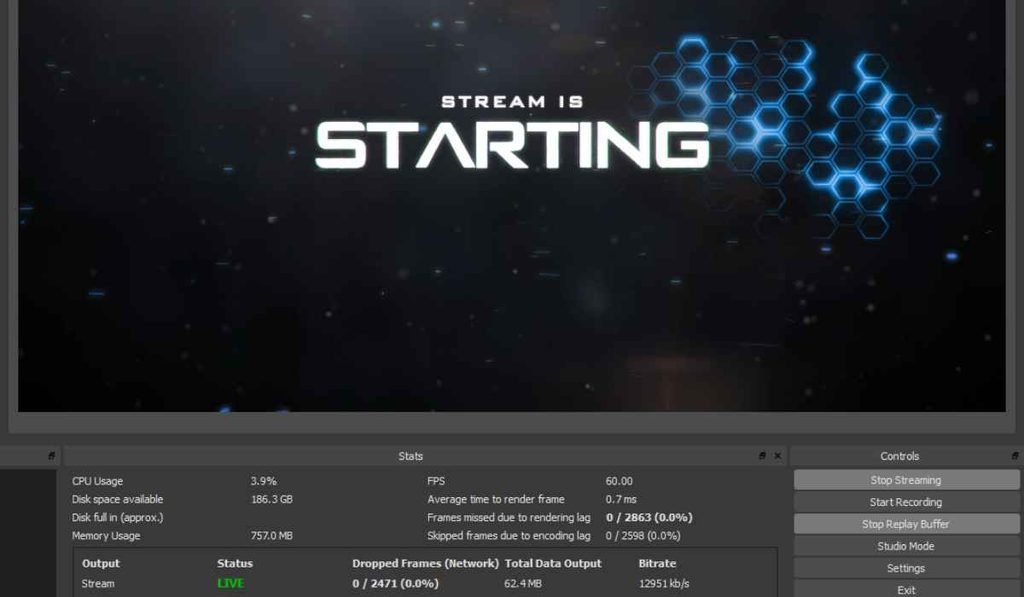
This feature allows OBS to reduce the streaming bitrate when the connection cannot keep up. Instead of continuing to send data at a rate your connection cannot handle, OBS can lower the bitrate temporarily.
There is an important tradeoff.
Lower bitrate means lower image quality.
For example, your stream may look softer during a period of network congestion. However, viewers may receive a continuous stream instead of experiencing repeated frame drops or a disconnection.
OBS specifically says dynamic bitrate does not fix the underlying connection problem. It is better viewed as a way to manage congestion while you investigate the real cause.
Use Ethernet Instead of Wi-Fi

If you are streaming over Wi-Fi, switching to Ethernet is one of the most useful tests.
Wi-Fi can be affected by:
- Distance from the router
- Walls and other obstacles
- Wireless interference
- Other devices using the network
- Congestion on the wireless channel
- Router performance
An Ethernet cable provides a direct wired connection between your computer and router.
OBS community troubleshooting guidance repeatedly recommends testing a wired connection when network dropped frames occur.
If dropped frames disappear after switching from Wi-Fi to Ethernet, you have a strong clue that the wireless connection was contributing to the problem.
If Ethernet is not practical, move your computer closer to the router or test a different Wi-Fi band if your router supports one.
Lower Your Streaming Bitrate
Your upload connection needs enough capacity to maintain your selected bitrate consistently.
Suppose your stream is configured at a bitrate that your connection can sometimes handle but cannot maintain during congestion. OBS may begin dropping frames when the connection falls behind.
Try lowering your bitrate gradually.
For example:
- Note your current bitrate.
- Reduce it by a reasonable amount.
- Start a test stream.
- Watch the dropped-frame percentage.
- Compare the result with your previous setting.
Do not assume that a speed-test result alone guarantees stable streaming. A connection can show strong headline speeds while still having packet loss, congestion, or routing problems to the particular streaming service.
Check Other Devices on Your Network
One of the easiest causes to overlook is network activity from other devices.
During a stream, another person or device could be:
- Uploading large files
- Backing up photos
- Watching high-resolution video
- Downloading games
- Running cloud synchronization
- Uploading videos
- Using another streaming service
These activities can compete with OBS for available bandwidth.
Before your next stream, pause unnecessary downloads and cloud backups. If possible, avoid large uploads on the same connection.
If your dropped frames improve immediately, network congestion was likely part of the problem.
Restart the Router and Modem
A router that has been running for a long time can occasionally develop temporary connection problems.
Power cycling your networking equipment is a simple diagnostic step.
- Stop your OBS stream.
- Turn off the router.
- Turn off the modem or gateway if it is separate.
- Wait briefly.
- Turn the equipment back on.
- Wait until the internet connection is fully restored.
- Restart OBS.
- Test the stream again.
If the problem keeps returning after every few hours or days, the router, modem, network adapter, or ISP connection may need deeper investigation.
Check OBS’s “Bind to IP” Setting
If you previously changed advanced network settings in OBS, check Bind to IP.
Go to:
Settings > Advanced > Network > Bind to IP
OBS recommends leaving this setting at Default unless there is a specific reason to choose another interface.
A manually selected network interface can cause problems if your computer has multiple adapters, VPN software, virtual network interfaces, or changing network connections.
If you do not have a specific networking reason to select an IP interface, Default is the safer troubleshooting choice.
Test IPv4 if Your Connection Has Problems
OBS also provides an IP Family option under its network settings.
The default configuration uses IPv4 and IPv6. OBS’s troubleshooting guide says users can test IPv4 Only when connection problems occur, but recommends returning to the default IPv4 and IPv6 setting if changing it makes no difference.
This should be treated as a troubleshooting test rather than a universal solution.
If your stream suddenly becomes stable after switching to IPv4 only, the result can provide a useful clue about your network path or IPv6 configuration.
Temporarily Disable a VPN
A VPN can change the route between your computer and the streaming service.
That extra routing can sometimes create instability, latency, or packet loss.
If you use a VPN, temporarily disconnect it and test OBS again.
If the dropped frames disappear, the VPN may be affecting the route to your streaming server.
OBS lists VPN software among the potential outside software factors that can interfere with a stable connection.
Do not leave security software permanently disabled just to test OBS. If a firewall or antivirus program turns out to be responsible, add an appropriate exception for OBS and then re-enable the protection.
Choose a Better Streaming Server
Your internet connection does not necessarily have the same quality of route to every streaming server.
You might have excellent performance when browsing websites but poor connectivity to a particular streaming ingest location.
If your streaming platform allows you to choose a server, test another available location.
Look for a server that provides:
- Stable connection
- Consistent bitrate
- Low packet loss
- Few or no dropped frames
A different server can sometimes help when the problem exists somewhere along the network route rather than inside your home network.
Update Your Network Driver
If you are using Windows, check whether your Ethernet or Wi-Fi adapter has a current driver.
An outdated or problematic network driver can cause connectivity problems.
Open:
Device Manager > Network adapters
Identify your Ethernet or Wi-Fi adapter and check for available driver updates.
For important driver updates, prefer Windows Update or the network adapter or computer manufacturer’s official support page rather than random driver-download websites.
Recent OBS community troubleshooting cases in 2026 have also included network-driver issues alongside dropped-frame problems.
Do Not Confuse Network Drops With GPU Overload
One common mistake is changing graphics settings when the actual problem is network-related.
If OBS shows:
Dropped frames due to insufficient bandwidth/connection stalls
focus on your network.
If it shows:
Skipped frames due to encoding lag
investigate your encoder and CPU/GPU performance.
If it reports:
Frames missed due to rendering lag
look at your GPU load, scene complexity, capture sources, and game settings.
This distinction can save a lot of time because each type of frame loss has a different cause.
Check OBS Logs for Clues
If you have tried the basic fixes and the problem continues, create an OBS log after reproducing the issue.
In OBS, you can use the Help menu and look for the log-file options.
The log can show information about:
- Dropped-frame percentages
- Connection stalls
- Bitrate changes
- Network interfaces
- Encoding performance
- Rendering performance
- Streaming sessions
OBS’s own support guidance recommends using logs when diagnosing connection problems.
If you ask for help on the OBS forums, providing a log from the session where the problem occurred gives others much more useful information than simply saying “my stream is lagging.”
A Practical Troubleshooting Order
If you want to test one fix at a time, use this order:
- Restart your router and computer.
- Switch from Wi-Fi to Ethernet.
- Check your upload stability.
- Lower OBS bitrate.
- Enable Dynamic Bitrate.
- Enable network optimizations and TCP pacing on supported Windows systems.
- Set Bind to IP to Default.
- Test IPv4 Only if necessary.
- Disable VPN temporarily.
- Stop other bandwidth-heavy activities.
- Test another streaming server.
- Update your network adapter driver.
- Review an OBS log.
This approach helps isolate the problem instead of changing ten settings at once.
When to Contact Your Internet Provider
If the OBS dropped frames network fix steps above do not help, especially when dropped frames occur on a wired connection, the issue may be outside your computer.
Contact your ISP if you notice:
- Upload speed regularly falls below normal
- Packet loss occurs
- Connection drops during streams
- Problems affect other devices
- The issue happens at certain times every day
- Router logs show repeated connection errors
Tell the provider that you are experiencing unstable upload connectivity or packet loss rather than simply saying OBS is not working.
OBS explains that dropped frames are related to the connection between your computer and the remote streaming server and can involve the ISP or networking hardware.
The Best OBS Dropped Frames Network Fix Depends on the Cause
There is no single setting that fixes every stream.
For some users, Ethernet will solve the problem. Others may need to reduce bitrate, change servers, remove VPN interference, update a network driver, or address a router or ISP problem.
The important part is identifying network dropped frames correctly. Once you know that OBS is struggling to send data reliably, you can focus on the connection instead of wasting time changing unrelated video and encoder settings.
FAQs
- What is the fastest OBS dropped frames network fix?
- Start by using Ethernet, lowering your bitrate, and enabling Dynamic Bitrate under Settings > Advanced > Network.
- Why does OBS show dropped frames when my internet speed seems fast?
- A speed test may show high overall bandwidth while your route to the specific streaming server still has instability, congestion, or packet loss.
- Does Dynamic Bitrate fix OBS dropped frames permanently?
- No, Dynamic Bitrate manages congestion by reducing bitrate, but OBS says it does not fix the underlying network problem.
- Should I use Ethernet instead of Wi-Fi for OBS streaming?
- Ethernet is generally a useful troubleshooting step because it removes many wireless stability and interference factors.
- Can OBS itself cause network dropped frames?
- OBS’s official guidance says network dropped frames are caused by an unstable connection or an inability to maintain the configured bitrate and are extremely unlikely to be caused directly by OBS.
The right OBS dropped frames network fix is usually found by working from the connection outward. Start with Ethernet, bitrate, router stability, and OBS network settings, then investigate drivers, VPNs, server routes, and your ISP if the problem continues. A stable connection matters more than simply having a high advertised internet speed.