 admin
admin
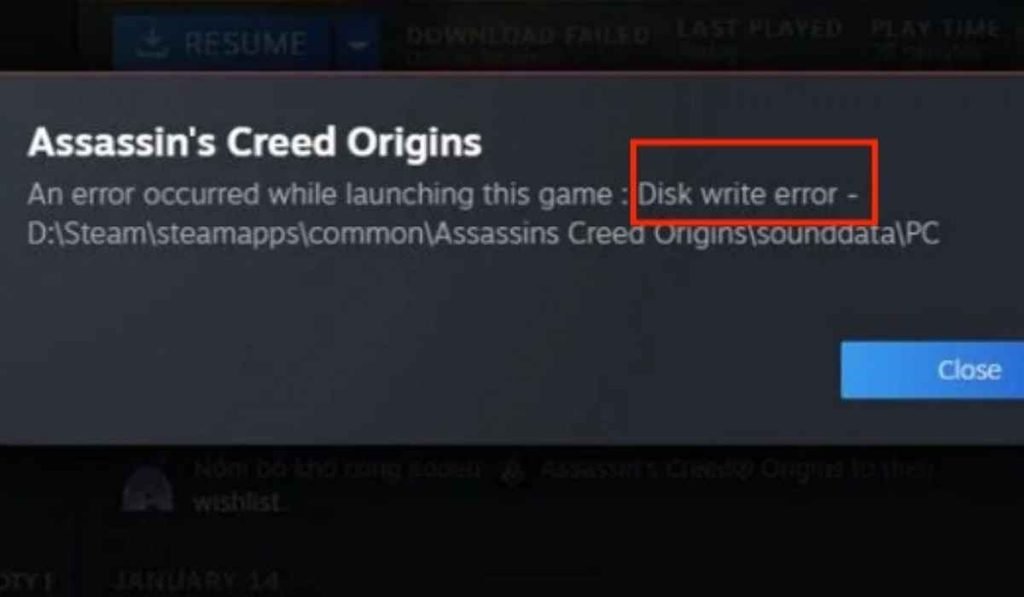
A Steam disk write error fix usually appears when Steam cannot write, modify, or save game files to the drive where the game is being installed or updated. The message can show up while downloading a new game, installing an update, verifying files, or moving an existing game library.
The error is frustrating because Steam may download most of a game before suddenly stopping. In many cases, the cause is not the game itself. It can be a permissions problem, corrupted download data, an antivirus program blocking Steam, a full drive, a damaged library folder, or a problem with the storage device.
The good news is that you can check these causes one by one without immediately reinstalling Steam.
What Causes a Steam Disk Write Error?
Steam needs permission to create, change, and delete files inside its library folders. If Windows, security software, or the storage drive prevents those actions, Steam can stop the installation.
Common causes include:
- Not enough free storage
- Steam lacking permission to access the library folder
- Corrupted Steam download cache
- Damaged game files
- A Steam library folder with incorrect permissions
- Antivirus or Windows security blocking file changes
- A drive developing errors
- A temporary Steam client problem
- An interrupted previous installation
- Problems with an external drive or removable storage
Before trying advanced fixes, check the drive where the game is being installed. A game may require more temporary space than its advertised download size, especially during updates.
Steam Disk Write Error Fix: Restart Steam and Your PC
Start with the simplest solution.
Close Steam completely and restart Windows. This can clear a temporary process that is keeping a game file locked.
After restarting:
- Open Steam.
- Go to Library.
- Start the download or update again.
- Check whether the error returns.
If Steam is stuck in the background, open Task Manager with Ctrl + Shift + Esc and look for Steam processes. Close them before launching Steam again.
This fix will not repair a damaged drive, but it can solve temporary file-locking and client issues.
Check Available Disk Space
A lack of free space is one of the first things worth checking.
Open File Explorer → This PC and look at the drive containing your Steam library.
If the drive is almost full, free some space before trying another download. Remember that Steam may need additional room while unpacking and installing files.
A simple check is:
- Find the Steam library drive.
- Check the available storage.
- Delete unnecessary files or uninstall games you no longer use.
- Empty the Recycle Bin.
- Try the Steam download again.
If the drive has plenty of free space and the error remains, move on to the next step.
Repair the Steam Library Folder
A damaged or incorrectly configured Steam library folder can prevent Steam from writing game files.
Steam provides a built-in option for repairing library folders. In the current Steam desktop client, open the storage management area and locate the affected library.
Depending on the Steam interface version, the path may appear under Steam → Settings → Storage.
Select the library containing the problematic game and use the available folder-management options to repair it if Steam presents that option.
A repair can restore access to a folder without requiring you to delete the installed games.
Why Library Permissions Matter
Windows permissions control which applications can create and modify files.
If Steam can read a folder but cannot write to it, you may see a disk write error even though the drive itself is working normally.
Avoid changing Windows permissions randomly. First try Steam’s built-in library repair options.
Steam Disk Write Error Fix by Clearing the Download Cache
Steam’s download cache can sometimes become corrupted after interrupted downloads or updates.
Clearing it forces Steam to rebuild temporary download information.
To clear the cache:
- Open Steam.
- Select Steam from the top-left menu.
- Open Settings.
- Go to Downloads.
- Choose Clear Download Cache.
- Confirm the action.
- Sign back into Steam if prompted.
- Try downloading the game again.
Clearing the download cache does not normally mean deleting your installed games. However, Steam may ask you to sign in again.
This is one of the first fixes worth trying when the same download repeatedly fails.
Run Steam as Administrator

Windows can sometimes restrict an application from writing to certain folders.
You can test whether permissions are responsible by closing Steam and launching it with administrator privileges.
Right-click the Steam shortcut and choose Run as administrator.
Then try the installation again.
If the game downloads successfully afterward, the problem may involve Windows permissions. However, running Steam as administrator permanently is not always necessary. It is better to identify and correct the underlying folder-access problem when possible.
Check Windows Security and Antivirus Software
Security software can occasionally interfere with game installations.
Windows Security and third-party antivirus programs monitor applications that create or modify large numbers of files. A Steam update can trigger this protection, especially if an antivirus program incorrectly identifies a file or behavior as suspicious.
If Steam repeatedly fails at the same point, check your security software’s protection history.
Look for Steam or the affected game’s files.
Do not disable antivirus protection permanently just to force an installation. If you need to test whether security software is responsible, use the security product’s documented exclusion or allow-list features carefully and only for trusted software.
You can also check:
- Windows Security protection history
- Controlled folder access settings
- Third-party antivirus quarantine
- Firewall notifications
- Recent security software updates
If a security program has blocked Steam, correcting that specific block is safer than turning off protection completely.
Verify the Game Files
If the error happens with an already installed game, corrupted files may be involved.
Steam includes a file verification feature that compares local game files against the expected installation.
To use it:
- Open your Steam Library.
- Right-click the affected game.
- Select Properties.
- Open Installed Files.
- Select Verify integrity of game files.
Steam will check the installation and replace files that are missing or damaged.
This process can take a while, particularly for large games.
If verification repeatedly finds damaged files, that can be a useful clue. The issue may be related to the storage drive, permissions, security software, or another underlying problem rather than the game alone.
Steam Disk Write Error Fix for a Problematic Drive
If Steam fails with several different games, pay closer attention to the storage drive.
A disk write error affecting one game could be a game-specific problem. The same error affecting many games is more suspicious.
Check whether:
- Other applications can save files normally.
- Windows reports disk errors.
- The drive disappears temporarily.
- File transfers fail outside Steam.
- An external drive disconnects.
- The drive is unusually slow.
- Windows reports that the disk is read-only.
For an external SSD or hard drive, check the USB cable and port as well. A loose connection can interrupt file operations during large downloads.
You can also use Windows’ built-in drive error-checking tools to look for filesystem problems.
Do not repeatedly force downloads onto a drive that is showing signs of failure. If important files are stored there, back them up first.
Move the Steam Game to Another Drive
If you have another healthy drive with enough storage, moving the affected game can help determine whether the original library is the problem.
Steam supports multiple library locations, allowing games to be stored on different drives.
Create or select another Steam library and move the game there if Steam gives you the option.
The results can tell you a lot:
| Test | Result | What it suggests |
| One game fails | Other games work | Game or installation issue |
| Every game fails | Same library | Library permissions or drive issue |
| Downloads fail on one drive | Another drive works | Original drive may be the cause |
| Cache clearing works | Download resumes | Temporary Steam download data issue |
| Verification repairs files | Game launches afterward | Corrupted game files |
| Steam works as admin | Normal mode fails | Permission-related problem |
This simple comparison can save you from reinstalling everything.
Remove a Stuck Download Carefully
Sometimes Steam leaves behind incomplete download data after a failed installation.
Before deleting anything manually, try Steam’s built-in options such as clearing the download cache, repairing the library, or cancelling and restarting the affected installation.
Avoid randomly deleting folders from steamapps unless you know exactly what the files are. Removing the wrong files can make Steam lose track of installed games.
If you do need to work with Steam’s folders, make a backup of important data first.
Steam Disk Write Error Fix When the Error Keeps Returning
If Steam disk write error fix attempts work temporarily but the same problem returns, look for a pattern.
Does it happen:
- Only with one game?
- Only with one Steam library?
- Only on one drive?
- Only during updates?
- Only after your PC wakes from sleep?
- Only when antivirus protection is active?
- Only with an external drive?
The pattern is often more useful than the error message itself.
For example, if every game installed on an external drive fails but games on your internal SSD work normally, the external storage or its connection deserves attention.
If every game fails across multiple drives, investigate Steam itself, Windows permissions, security software, or system-level issues.
When Reinstalling Steam Makes Sense
Reinstalling Steam should not be your first move.
Most disk write errors can be investigated without removing the entire client. Reinstalling too early can create extra work and may require you to rebuild library locations or troubleshoot game detection afterward.
Consider reinstalling only after you have tried:
- Restarting Steam and Windows.
- Checking available storage.
- Clearing the download cache.
- Repairing the library.
- Verifying game files.
- Checking security software.
- Testing another library or drive.
- Checking the drive for errors.
If Steam itself appears damaged while the storage and game files are healthy, a clean reinstall may then be reasonable.
A Quick Troubleshooting Order
If you want the most practical Steam disk write error fix, follow these steps in order:
- Restart Steam and Windows.
- Check available disk space.
- Clear Steam’s download cache.
- Repair the affected Steam library.
- Run Steam as administrator as a test.
- Check antivirus and Windows Security history.
- Verify the game’s files.
- Test another Steam library or drive.
- Check the affected storage drive for errors.
- Reinstall Steam only if other fixes fail.
This order starts with low-risk fixes and moves toward deeper troubleshooting.
FAQs
- What causes a Steam disk write error?
- The error can result from insufficient storage, permissions, corrupted files, security software, download data, or storage-drive problems.
- Does clearing Steam’s download cache delete my games?
- Clearing the download cache is intended to remove temporary download information and does not normally uninstall your existing games.
- Why does Steam keep getting a disk write error on one game?
- A single affected game may have corrupted files, a stuck download, or a problematic installation that needs verification or repair.
- Can a bad hard drive cause a Steam disk write error?
- Yes, filesystem errors, failing storage, or unstable external-drive connections can prevent Steam from writing game files correctly.
- Should I reinstall Steam to fix a disk write error?
- Reinstalling Steam should usually be a later troubleshooting step after checking storage, cache, permissions, game files, and the library.
A Steam disk write error can look serious, but it often points to a specific file, folder, permission, cache, or drive problem. Start with the simple fixes, watch for patterns, and test another library when possible. That usually tells you whether Steam is the problem or the drive where your games are stored.