
 admin
admin
When CapCut export is stuck loading, the problem is usually caused by limited storage, a large project, heavy effects, corrupted media, outdated software, or a temporary rendering issue rather than the video being permanently lost. CapCut’s current troubleshooting guidance identifies storage, system resources, project complexity, browser problems, and problematic media as common reasons exports fail or freeze.
A stuck export can happen on CapCut mobile, Windows, macOS, or the web version. The exact fix depends on where you are editing, but most problems can be narrowed down with a few simple checks.
If you are dealing with capcut export stuck loading, do not immediately delete your project. Work through the fixes below, starting with the easiest ones.
Why Is CapCut Export Stuck Loading?
CapCut has to render every video clip, transition, text layer, filter, effect, audio track, and other element before it can create the final file. A demanding project can put significant pressure on your phone or computer.
Common causes include:
- Not enough free storage
- Low RAM or CPU resources
- A long or complex timeline
- 4K or high-frame-rate footage
- Corrupted video or audio files
- Heavy effects or stabilization
- Outdated CapCut software
- Outdated graphics drivers on PC
- Browser cache or memory problems
- An unstable internet connection on CapCut Web
- Permission problems when saving the exported file
- Background applications using system resources
CapCut’s official guidance also separates export problems by platform because web, desktop, and mobile exports have different limitations.
Quick Fix Table
| Problem | Best Fix | Platform |
| Export does not start | Restart CapCut | All |
| Export freezes early | Lower resolution | All |
| Export stops near 99% | Check storage and save permissions | All |
| 4K export takes too long | Try 1080p | All |
| Mobile export freezes | Free storage and close apps | Mobile |
| PC export freezes | Close background programs | Windows/macOS |
| Web export hangs | Clear browser cache | Web |
| One project always fails | Check individual clips | All |
| Stabilization takes too long | Reduce stabilized clips | All |
| Export file cannot save | Change save location | PC/Web |
| Graphics-related failure | Update GPU drivers | PC |
| Browser export fails | Try another supported browser | Web |
1. Wait a Little Before Cancelling the Export
Not every slow export is actually frozen.
A long video with 4K footage, multiple effects, transitions, or stabilization can take time to process. CapCut notes that stabilization in particular can significantly increase export time, especially when it is applied to long clips or many sections of a project.
Look at the progress percentage.
If the percentage is slowly moving, let it continue.
If it stays at exactly the same point for a long time and CPU, memory, or other system activity is also unusually low, the export may actually be stuck.
Do not repeatedly click Export while the first export is still processing. Cancel it once, restart CapCut, and then try again.
2. Restart CapCut and Your Device
A temporary rendering problem can sometimes be fixed by simply restarting the application.
First:
- Save your project.
- Close CapCut completely.
- Wait a few seconds.
- Open CapCut again.
- Reopen the project.
- Try exporting.
If that fails, restart your phone or computer.
CapCut recommends restarting the app or device as a basic troubleshooting step for temporary export problems.
This is particularly useful if the export worked earlier but suddenly stopped working after several editing sessions.
3. Check Your Available Storage
Low storage is one of the most common reasons for a failed or stuck export.
CapCut needs space for temporary rendering files as well as the finished video. A project might be only a few gigabytes in size, but the export process can require additional temporary storage.
Check your available space before trying again.
On Windows
Open Settings → System → Storage.
On macOS
Open Apple menu → System Settings → General → Storage.
On iPhone
Go to Settings → General → iPhone Storage.
On Android
Open Settings → Storage.
Delete unnecessary downloads, old videos, unused apps, or other large files if your storage is nearly full.
CapCut specifically lists insufficient storage as a common cause of export problems across PC and mobile devices.
4. Lower the Export Resolution
If you are exporting at 4K, try 1080p.
This is one of the quickest ways to determine whether your device is struggling with the project’s rendering requirements.
For example, if your current settings are:
- 4K resolution
- 60 FPS
- High bitrate
- Lots of effects
try:
- 1080p
- 30 FPS
- A moderate bitrate
You can increase the quality later after identifying the source of the problem.
CapCut recommends reducing resolution or frame rate when large projects or demanding export settings cause failures.
5. Close Background Programs

A capcut export stuck loading problem on a PC can happen when other programs are consuming CPU, RAM, or GPU resources.
Before exporting, close applications such as:
- Chrome with many tabs
- Photoshop
- Premiere Pro
- DaVinci Resolve
- Games
- Screen-recording software
- Discord
- Other video editors
Then restart the export.
CapCut identifies background programs and insufficient system resources as common desktop export problems.
On a phone, close other apps before starting a large export. This gives CapCut more available memory.
6. Find a Corrupted Clip
Sometimes the entire project is not the problem. One damaged or incompatible media file can stop the export.
This is especially likely when the export consistently freezes at the same percentage.
For example, if it always stops around 47%, inspect the clips and effects around that point in the timeline.
Try this:
- Duplicate the project if possible.
- Remove a suspicious clip.
- Export the project again.
- If it works, replace the removed file.
- Export again.
CapCut recommends exporting projects in smaller sections to identify problematic material. Its documented error-code guidance also recommends replacing affected clips or relinking media for certain export errors.
This method is much safer than deleting random parts of your original project.
7. Export the Video in Smaller Sections
For very long projects, export smaller sections instead of the entire timeline at once.
For example:
- Part 1: 0–5 minutes
- Part 2: 5–10 minutes
- Part 3: 10–15 minutes
If one section fails while the others export successfully, you have narrowed down the problem.
CapCut recommends exporting long projects in smaller segments when the complete project has trouble rendering.
You can then combine the successful sections into a new project if necessary.
8. Reduce Heavy Effects and Stabilization
Some effects require much more processing than basic cuts and text.
If your project contains several of these, temporarily remove them and test the export:
- Video stabilization
- Heavy blur
- Multiple overlays
- Complex transitions
- AI effects
- Large numbers of animated layers
- High-resolution effects
Stabilization deserves special attention. CapCut says applying stabilization to many clips or long sections can make exports take significantly longer.
Try applying stabilization only to clips that actually need it.
9. Fix CapCut Export Problems on Windows and Mac
If CapCut works normally until you press Export on a desktop computer, check your system resources and graphics drivers.
On Windows, update your GPU drivers through your graphics card manufacturer’s official software or support page.
CapCut identifies outdated or incompatible GPU drivers as a possible reason for export failures, especially when rendering relies on hardware acceleration.
Also try exporting to a normal local folder instead of:
- OneDrive-synced folders
- iCloud folders
- Network drives
- External drives with connection problems
CapCut specifically recommends changing the export location when saving permissions or the destination folder is causing problems.
10. Fix CapCut Export on iPhone or Android
Mobile devices have fewer resources than many desktop computers, so large projects can be harder to export.
If the export is frozen on your phone:
- Free up storage.
- Close other apps.
- Restart CapCut.
- Restart the phone.
- Lower the export resolution.
- Lower the frame rate.
- Keep the phone cool.
- Update CapCut.
- Try the export again.
On Android, CapCut recommends clearing its cache through the device’s app settings. On iPhone, CapCut recommends checking storage, restarting the app, reinstalling it when necessary, and keeping the app updated.
Before reinstalling, make sure important projects are safely backed up or synced so you do not accidentally lose local project data.
11. Clear Browser Cache on CapCut Web
If you are using CapCut in a browser, the troubleshooting process is different.
CapCut Web depends on browser resources and internet connectivity. Large projects can also run into browser memory limits.
Try these steps:
- Refresh the CapCut page.
- Close unnecessary browser tabs.
- Clear cached files.
- Update your browser.
- Temporarily disable extensions.
- Try a different supported browser.
- Check your internet connection.
CapCut specifically recommends clearing browser cache, updating the browser, reducing project size, and using a stable connection for web export problems.
12. What If CapCut Is Stuck at 1% or 99%?
The percentage where the export freezes can provide a useful clue.
If it stops near 1%, the problem may occur during the early rendering stage. CapCut lists corrupted material near the beginning of the timeline, insufficient resources, demanding settings, and temporary glitches as possible causes.
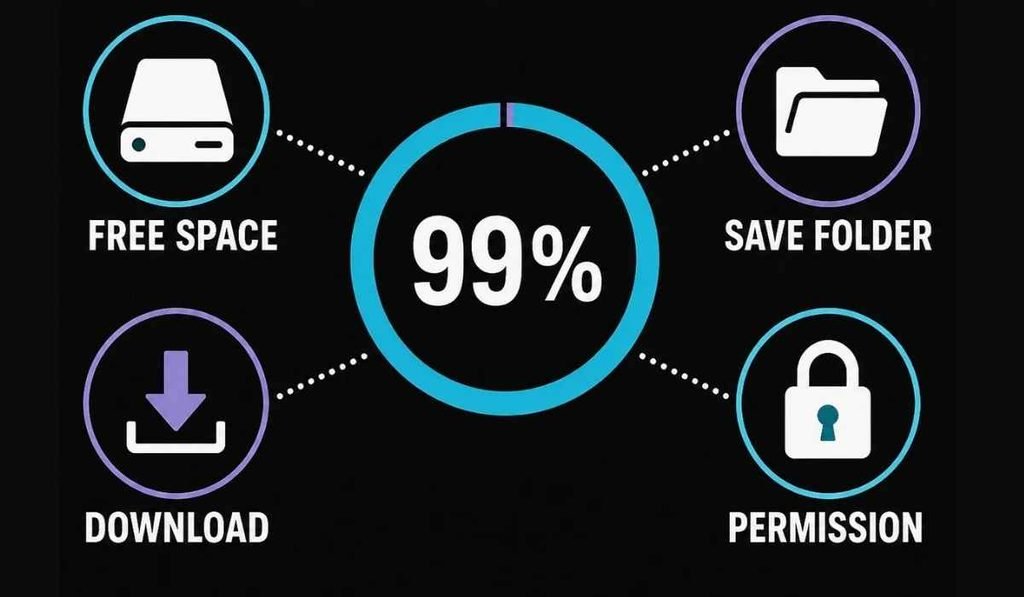
If it stops at 99%, the rendering may already be almost complete. The remaining problem can involve storage, permissions, corrupted media, or the destination folder.
That means you should not use exactly the same fix for every export percentage.
A Simple Troubleshooting Order
If you want the fastest approach, try these steps in order:
- Restart CapCut.
- Restart your device.
- Check free storage.
- Lower the resolution to 1080p.
- Close background apps.
- Remove or replace suspicious clips.
- Reduce heavy effects and stabilization.
- Change the export folder.
- Update CapCut.
- Update your graphics drivers if using a PC.
- Clear browser cache if using CapCut Web.
- Export the project in smaller sections.
This approach covers most of the common causes without forcing you to rebuild the entire video.
When You Should Contact CapCut Support
If the project still refuses to export after these steps, collect useful information before contacting support.
Include:
- Your device model
- Operating system
- CapCut version
- Project length
- Export resolution
- Frame rate
- Export percentage where it freezes
- Any error code
- Screenshot of the problem
- Whether other projects export normally
CapCut recommends contacting its support team when the standard troubleshooting steps do not resolve persistent export failures.
If other projects export successfully but one specific project does not, focus on the project’s media, effects, and timeline rather than your entire installation.
FAQs
- Why is my CapCut export stuck loading?
- A stuck export is commonly related to low storage, limited system resources, complex projects, corrupted media, or temporary software problems.
- How do I fix capcut export stuck loading at 99%?
- Check storage and file permissions, change the save location, and replace potentially corrupted media before exporting again.
- Why is CapCut export stuck at 1%?
- An export stuck at 1% can be caused by problematic clips near the start of the timeline, demanding settings, insufficient resources, or temporary glitches.
- Does lowering video quality fix CapCut export problems?
- Lowering resolution or frame rate can reduce the processing load and may allow a large or demanding project to export successfully.
- Can low storage make CapCut export fail?
- Yes, CapCut needs available storage for temporary processing and the finished video, so insufficient space can prevent an export from completing.
A capcut export stuck loading issue can look like a serious project failure, but it is often something much simpler. Check storage first, lower the export settings, close other apps, and test individual sections of the timeline. If one clip or effect is responsible, finding and replacing it can save hours of editing.
For business inquiries, feedback, or guest post opportunities, contact timesstock1@gmail.com.









[…] Steam needs permission to create, change, and delete files inside its library folders. If Windows, security software, or the storage drive prevents those actions, Steam can stop the installation. […]