
 admin
admin
If Discord is stuck on “RTC Connecting”, the app is having trouble establishing a connection to Discord’s voice servers, and the cause can be anything from your internet connection and VPN to firewall settings, DNS problems, or a Discord-side outage.
The good news is that an RTC Connecting error is usually fixable without reinstalling Windows or making complicated network changes. Discord’s own troubleshooting guidance recommends checking your network, restarting your devices, reviewing firewall and VPN settings, and trying another voice region when appropriate.
If you are searching for how to fix Discord RTC connecting, start with the quick fixes below and work through them in order.
What Does “RTC Connecting” Mean on Discord?
RTC stands for Real-Time Communication. When you join a Discord voice channel, Discord needs to establish a connection between your device and its voice infrastructure.
When the connection works, the status normally changes from “RTC Connecting” to “Connected.” If it stays on RTC Connecting, Discord has not successfully established the voice connection.
Common causes include:
- Unstable or restricted internet
- Router problems
- VPN interference
- Firewall or antivirus blocking Discord
- DNS-related connection issues
- School or workplace network restrictions
- Discord voice-region problems
- Outdated Discord software
- A wider Discord service issue
Discord specifically groups “RTC Connecting” with connection errors such as “ICE Checking,” “No Route,” and “Connecting.”
How to Fix Discord RTC Connecting Quickly
Before changing advanced settings, try these simple solutions:
- Completely close and reopen Discord.
- Restart your computer or phone.
- Restart your modem and router.
- Test another website or app to confirm your internet works.
- Disconnect your VPN temporarily.
- Check Discord’s service status.
- Try another network, such as a mobile hotspot.
These steps can quickly tell you whether the problem is local to your device or connected to your network.
Quick Fix Table
| Problem | What to Try | Difficulty |
| Discord temporarily stuck | Restart Discord | Easy |
| Internet connection issue | Restart router | Easy |
| VPN interference | Disable VPN | Easy |
| Firewall blocking Discord | Allow Discord | Medium |
| DNS problem | Change DNS | Medium |
| Voice-region issue | Try another region | Easy |
| Outdated client | Update Discord | Easy |
| Network restriction | Try another network | Easy |
| Corrupted app data | Clear cache/reinstall | Medium |
| Discord outage | Check status page | Easy |
1. Restart Discord Completely
A normal Discord window close does not always stop every Discord process.
On Windows, press Ctrl + Shift + Esc to open Task Manager. Find Discord, right-click it, and choose End Task. Then open Discord again.
On macOS, quit Discord completely and relaunch it.
This is one of the first things worth trying because a temporary client or connection problem can disappear after a fresh connection is created.
If you regularly encounter RTC Connecting after leaving and rejoining channels, a complete restart is more useful than repeatedly clicking the disconnect button.
2. Restart Your Router and Computer
Your internet may appear to work normally while the route Discord uses for voice communication is having trouble.
Discord recommends restarting your modem, router, and computer when voice connection errors occur.
Try this sequence:
- Close Discord.
- Turn off your router or modem.
- Wait about 30 seconds.
- Turn it back on.
- Wait until your connection returns.
- Restart your computer.
- Open Discord and test voice chat.
If Discord works normally afterward, the issue was likely temporary network state rather than a permanent Discord problem.
3. Check Whether Discord Is Down
Sometimes the problem is not your computer at all.
Before changing DNS settings or reinstalling Discord, check the official Discord status page. Discord’s current status page provides separate information for services including Gateway and Voice.
If Discord is experiencing a voice-service incident, there may be nothing you can change locally to fix it.
This is an important step when how to fix Discord RTC connecting searches suddenly spike across social media or gaming communities. If many users are reporting the same problem at the same time, waiting for the service to recover may be the correct solution.
4. Turn Off Your VPN Temporarily
VPNs can interfere with Discord voice connections, especially when the VPN configuration or server does not handle UDP traffic correctly.
Discord says its voice service works with VPNs that support UDP.
To test whether your VPN is responsible:
- Disconnect from the VPN.
- Completely restart Discord.
- Join a voice channel again.
If RTC Connecting disappears, your VPN is likely involved.
You do not necessarily need to uninstall the VPN. Try another VPN server or protocol if your provider offers those options.
5. Check Your Firewall and Antivirus
Security software can sometimes prevent Discord from communicating with its voice servers.
Discord recommends checking firewall and antivirus settings and making sure Discord is allowlisted when voice connection errors occur.
On Windows, check your firewall settings and make sure Discord is allowed through the network.
If you use third-party antivirus software, you can temporarily disable its network protection for testing. Do not leave your security software disabled permanently. If Discord works only when the antivirus is disabled, add Discord as an allowed application instead.
6. Try a Different Internet Connection
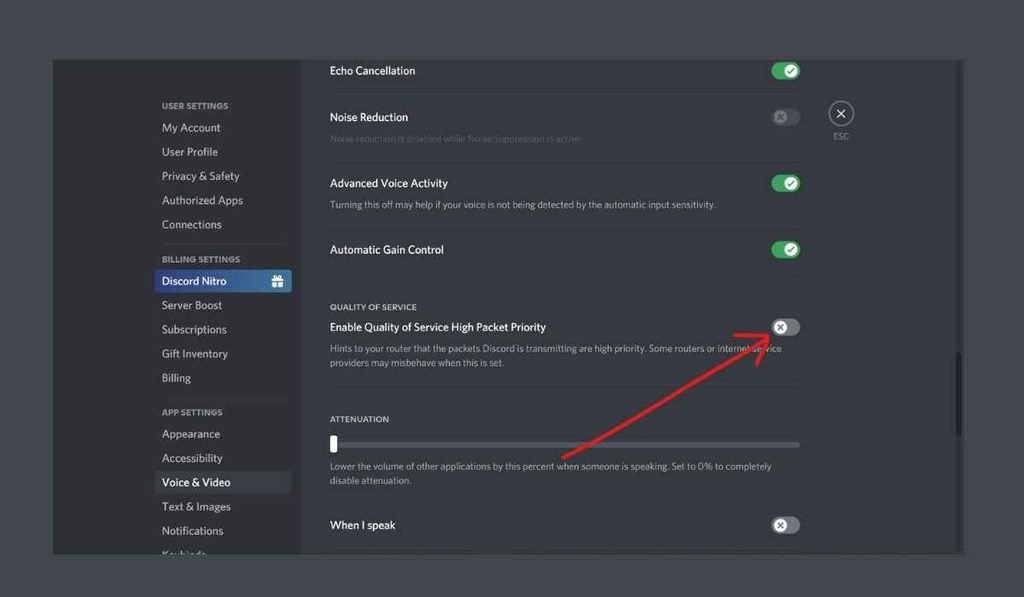
This is one of the fastest ways to identify the source of the problem.
If you are on Wi-Fi, connect your computer to another network if possible. A phone hotspot can work as a quick test.
If Discord connects normally through the alternative network, your original network may be blocking or interfering with Discord voice traffic.
This is especially useful on:
- School networks
- Office networks
- Public Wi-Fi
- Shared apartment networks
- Networks with strict firewall rules
Discord notes that work and school networks may block the service, so network administrators may need to change their settings.
7. Change the Discord Voice Region
A voice-region problem can sometimes cause connection trouble for a particular channel.
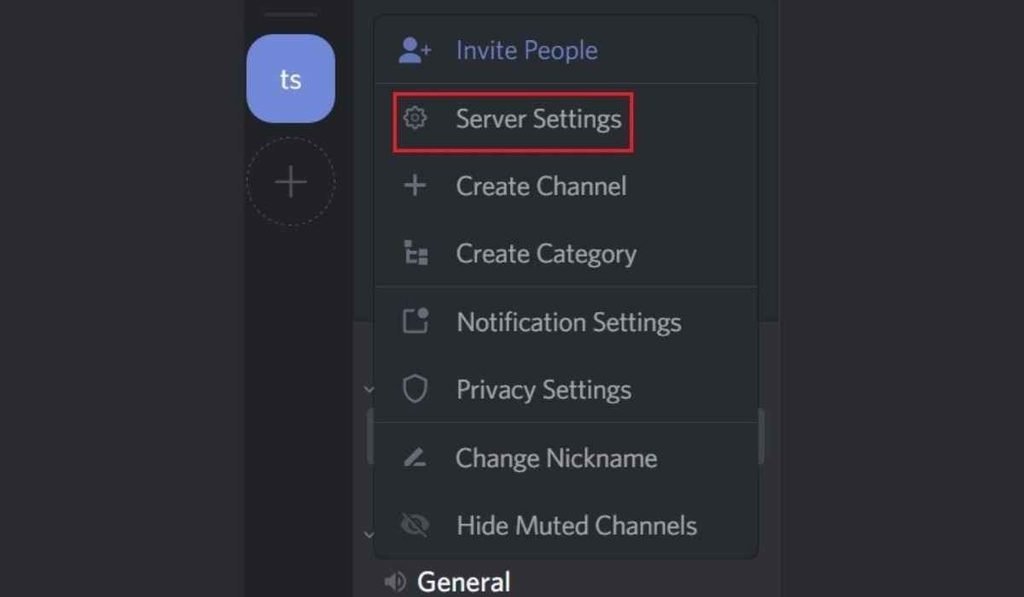
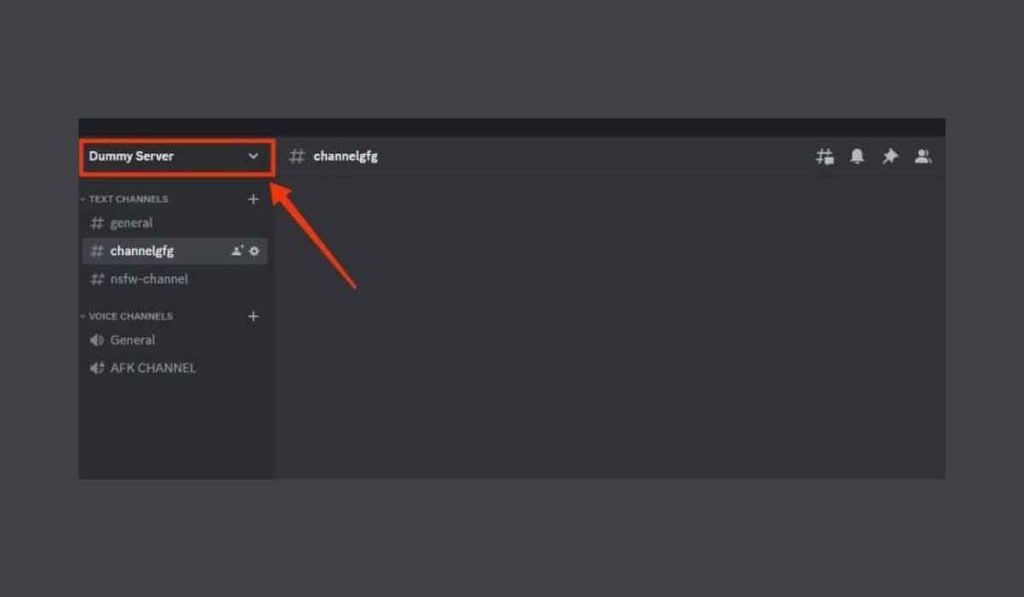
If you manage the server, Discord allows you to temporarily change the voice region through the voice channel settings. Discord also recommends trying another region when dealing with voice connection errors.
Try:
Voice Channel Settings → Overview → Region Override
Choose another available region and reconnect.
If the channel is set to Automatic, disconnecting and reconnecting can also help. Discord’s voice-region guidance recommends trying a reconnect before manually changing the region when Automatic is selected.
8. Update Discord in 2026
An outdated Discord client can cause compatibility problems.
This matters even more in 2026 because Discord introduced minimum client requirements for voice conversations. Discord states that, beginning March 2, 2026, voice and video conversations require a client that supports its end-to-end encryption requirements. Unsupported versions can be unable to join voice calls.
So, if you have not updated Discord recently:
- Close Discord.
- Open it again and allow any available update.
- Check your Discord version.
- Try joining the voice channel again.
If you use an unofficial or outdated third-party Discord client, switching to the current official client is also worth testing.
9. Clear Discord Cache or Reinstall the App
Corrupted temporary files can sometimes cause unusual Discord behavior.
Discord’s troubleshooting guide recommends clearing Discord’s cache for certain connection and loading problems.
On Windows, Discord cache files are located under its application data folders. Discord’s troubleshooting documentation identifies the cache location under %appdata%/discord/Cache.
If clearing the cache does not help, consider a clean reinstall:
- Uninstall Discord.
- Restart your computer.
- Download the current Discord installer.
- Install the latest version.
- Sign in and test voice chat.
Reinstalling is more useful when the problem affects only the desktop application while Discord works correctly in a browser.
10. Try Discord in Your Browser
This is a useful diagnostic step that many people overlook.
Open Discord through a supported web browser and join the same voice channel.
If browser Discord connects while the desktop application remains stuck on RTC Connecting, the problem may be related to your desktop installation, settings, or local application environment.
Discord’s voice troubleshooting guide also recommends browser-specific checks, including making sure the browser has the necessary microphone permissions and is supported.
AMD Hardware Can Also Matter
Discord has documented a specific RTC Connecting issue involving some older AMD CPUs or GPUs. In those cases, Discord says the desktop application could become stuck while initializing or querying the AMD hardware video encoder.
If you have an affected AMD system and the browser version connects normally, Discord recommends checking your installation, updating GPU drivers, and disabling the OpenH264 Video Codec provided by Cisco Systems, Inc. in Voice & Video settings.
This is a less common cause, so try the basic network fixes first.
What If Nothing Fixes RTC Connecting?
If you have tried every step and Discord still refuses to connect, collect a few details before contacting support.
Note:
- Your operating system
- Discord version
- Whether browser Discord works
- Whether another network works
- Whether a VPN is enabled
- Whether the issue happens in every server
- Any error message shown by Discord
Discord recommends checking its status page first and contacting support if connection problems continue. For some troubleshooting cases, Discord may also request console logs or screenshots.
The pattern of the problem can also tell you a lot. If Discord fails only on one network, focus on the network. If it fails only in the desktop app, focus on the application. If it fails for everyone, check Discord’s service status.
FAQs About Discord RTC Connecting
- What does RTC Connecting mean on Discord?
- It means Discord is having trouble establishing a real-time voice connection with its voice servers.
- How long should Discord stay on RTC Connecting?
- It should normally move to a connected state quickly, so a prolonged RTC Connecting message indicates a connection problem.
- Can a VPN cause Discord RTC Connecting?
- Yes, Discord says VPNs that do not support UDP can interfere with voice connections.
- Does restarting the router fix Discord RTC Connecting?
- Restarting the modem and router can resolve temporary network problems that prevent Discord from reaching its voice servers.
- Why does Discord connect in the browser but not the app?
- This can point to a desktop-app issue, such as outdated software, corrupted cache, settings, or installation problems.
Getting stuck on RTC Connecting is frustrating, but it usually does not mean your Discord account is broken. Start with the simple checks, especially restarting Discord, testing another network, disabling a VPN, checking firewall access, and verifying Discord’s service status. If those fail, move to voice-region changes, cache cleanup, updates, and a clean reinstall.
For business inquiries, feedback, or guest post opportunities, contact timesstock1@gmail.com.







[…] own documentation says particularly large workspaces can have trouble completing the Export all workspace content process. Its recommended workaround is to export smaller sections […]